

How drafts work
- You can save a draft with required fields left empty. Required fields are checked when you submit.
- Only you can see your drafts. No one else, including Managers, sees a draft until you submit it.
- Your drafts appear alongside submitted records in tables, on the property page, and on the map, marked with a Draft tag.
- Nothing runs on a draft. Automations, notifications, and workflow steps wait until you submit.
- Submitting is final. You can’t turn a submitted record back into a draft.
Drafts are available on web. Drafts on the mobile app are coming in the next app release.
Save a record as a draft
1
Start or open a record
Create a new record, or open a draft you saved earlier. See Creating records for how to start a record.
2
Fill in what you have
Enter the information you know now. You can leave required fields empty.
3
Select Save as draft
Select Save as draft, next to the Submit button. The record is saved with a Draft tag, and you can come back to it later.
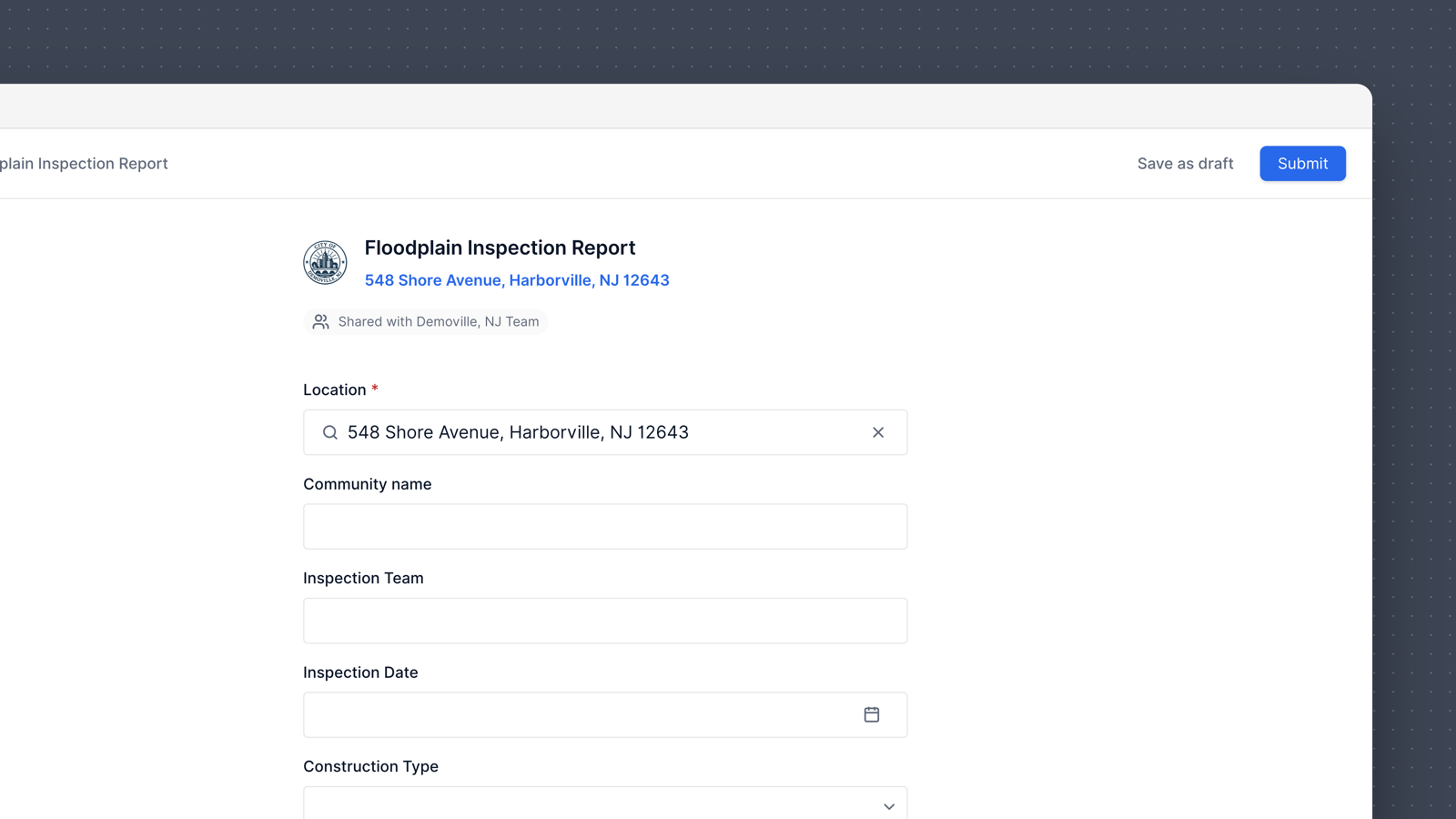 Save as draft appears on new records and on drafts you haven’t submitted yet. It doesn’t appear on records that are already submitted.
What’s checked when you save a draft
Saving a draft skips required fields, including required file uploads and required user fields. Everything else on the form is still checked:- Field formats, like dates and numbers
- Dropdown values
- Minimum and maximum values
- The maximum number of items a field allows
Find and finish your drafts
Your drafts show up in the same places as submitted records, marked with a Draft tag:- Record tables and saved views
- The record list on a property or object page
- The map
- The Files list on a property, for files uploaded to a draft
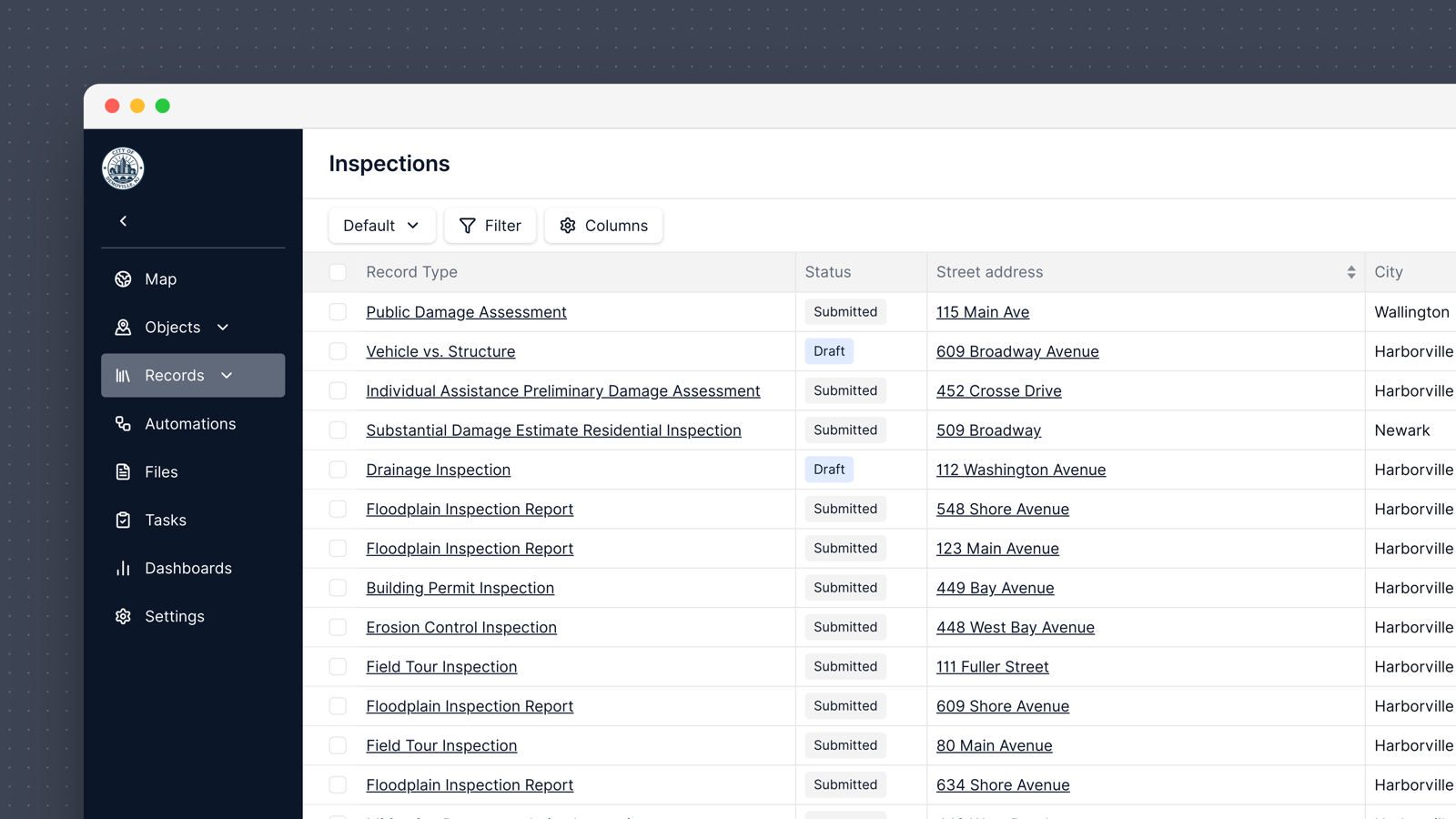 To see only your drafts in a record table, filter the Status column to Draft. Status values are Draft, Processing, Submitted, and Canceled.
The Submitted date column stays empty until you submit, since a draft hasn’t been submitted yet.
To finish a draft, open it from any of these places and keep working. Save it as a draft again, or submit it when it’s complete.
To see only your drafts in a record table, filter the Status column to Draft. Status values are Draft, Processing, Submitted, and Canceled.
The Submitted date column stays empty until you submit, since a draft hasn’t been submitted yet.
To finish a draft, open it from any of these places and keep working. Save it as a draft again, or submit it when it’s complete.
A new draft can take up to an hour to appear on the map.
Submit a draft
Open the draft and select Submit. Submitting checks the whole form, including required fields. If a required field is empty, the record can’t be submitted until you fill it in. Once you submit:- Everyone with access to the record type can see it
- The Draft tag changes to Submitted, and the Submitted date is set
- Automations, notifications, and workflow steps run, as they would for any new record
If the workflow step was completed while you were drafting
Starting a draft from a workflow step doesn’t hold that step for you. If someone else completes the step before you submit, a banner on your draft lets you know. You can still submit your draft as a standalone record, or delete it.What waits until you submit
A draft isn’t a finished record, so nothing acts on it until you submit. These all wait:- Automations, including triggers for a record being created or updated
- Notification emails
- Workflows: completing the step or task the record belongs to, and starting any workflow the record kicks off
- Calculations and warnings for Substantial Improvement/Substantial Damage, Substantial Damage Estimates, and Preliminary Damage Assessments
- AI Fields that generate automatically
- Activity feed entries. Saving or editing a draft doesn’t add to the activity feed. One entry is added when you submit.
- The record’s unique ID
What works on a draft
- Formulas and default values fill in
- Depreciation on a Substantial Damage Estimate updates when you save
- Files you upload are saved with the draft
Drafts and related records
When you add a related record from another record’s form, you choose how it’s submitted. See Related records for how related records work.- Mark as ready when the related record is complete. It gets a Ready tag and is submitted together with the main record.
- Save as draft when you’re not finished with it. It gets a Draft tag and stays a draft when the main record is submitted. You submit it on its own later.
Submitting the main record checks every Ready related record too. If one is missing a required field, fix it before you submit.
A Ready related record is submitted from the main record, not on its own. To submit it, submit the main record.
Delete a draft
Open the draft and select Delete from the Actions menu. Since only you can see your drafts, only you can delete them. You need a Manager or Member role to delete records, so users with the Creator role can’t delete their own drafts. Deleting a draft can’t be undone.For Managers: drafts and record type changes
When you change a record type, drafts count as existing records of that type. That includes other users’ drafts, even though you can’t see them.- Versioning. If drafts of a record type exist, saving changes to its form creates a new version, the same as it would for submitted records. See Record type versioning.
- Blocked changes. Some changes can’t be made while records of a type exist, like changing what the record type attaches to or changing a field’s type. Drafts count toward this check. If a change is blocked and you can’t see any records, other users may have drafts of that type. Ask them to submit or delete their drafts first.
Drafts on the mobile app
Drafts are coming to the mobile app in the next app release. Until then, save and submit drafts on web. Drafts you save on web don’t appear in the mobile app yet.Drafts on the public website
Residents with a public user account can select Save as draft on a form on your public website and come back to finish it later.- Residents must be signed in to save a draft. Guest users without an account can’t save drafts and are asked to sign in.
- Residents find their drafts in My records, marked with a Draft tag.
- A resident’s draft is private to them. Your team can’t see it until the resident submits it, and no notifications or automations run until then.
- Residents can’t delete a draft from the public website.