

How object relationships work
- A manager sets up a relationship between two object types in Settings, like “a stormwater system has many inlets”
- A manager can add lookup fields to show details from a linked object, like the system name on each inlet
- Users link individual objects from the Related tab, or accept a suggested link
- Linked objects appear on each other’s Related tab and can be explored together on the map
- Each inlet keeps its own inspections, and still shows which system it’s part of.
Set up a relationship
Managers set up relationships for an object type, and every object of that type follows the same setup. You only do this once per pair of object types.1
Open the object type
Go to Settings > Object types, select the … menu on the object type, and choose Edit. Relationships are on the Name & structure step, under Related object types.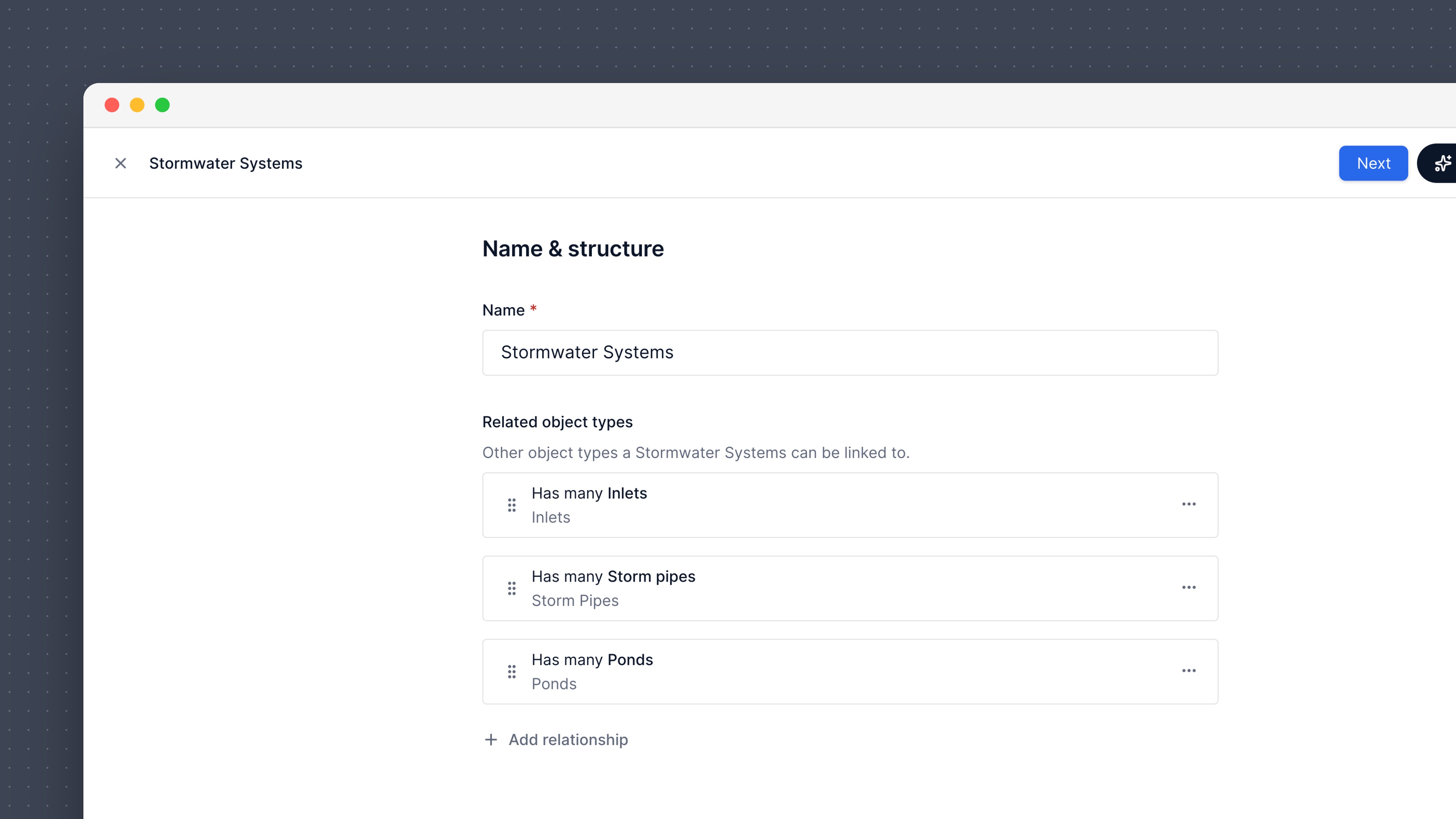
2
Add a relationship
Select Add relationship. Choose has one or has many, then choose the other object type.For example, “Stormwater Systems has many Dry Detention Basins” means a system can have many basins, and each basin belongs to one system.
3
Name each side
Give each side a name that reads naturally from that object. The name on the system side, like “Detention basins”, is the heading on the system’s Related tab. The name on the other side, like “Drainage system”, is what each basin calls its system.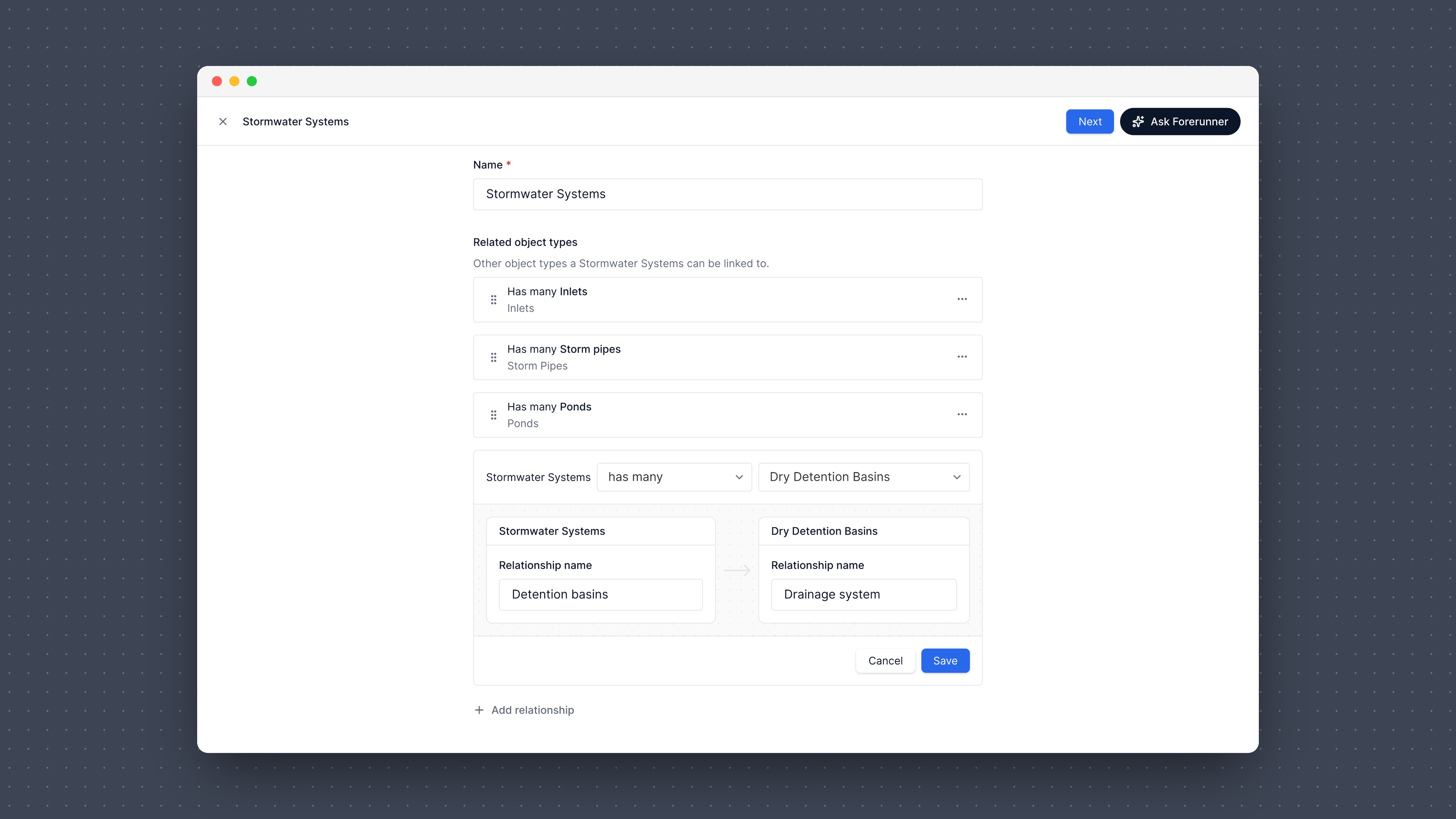
4
Save
Select Save. The relationship is saved right away.
Show information from a related object
Once a relationship exists, you can add two kinds of attributes on the object type’s Attributes step:- Relationship shows the linked object itself, like the system an inlet belongs to.
- Lookup shows a field from the linked object, like the system ID. It stays up to date when the system changes.
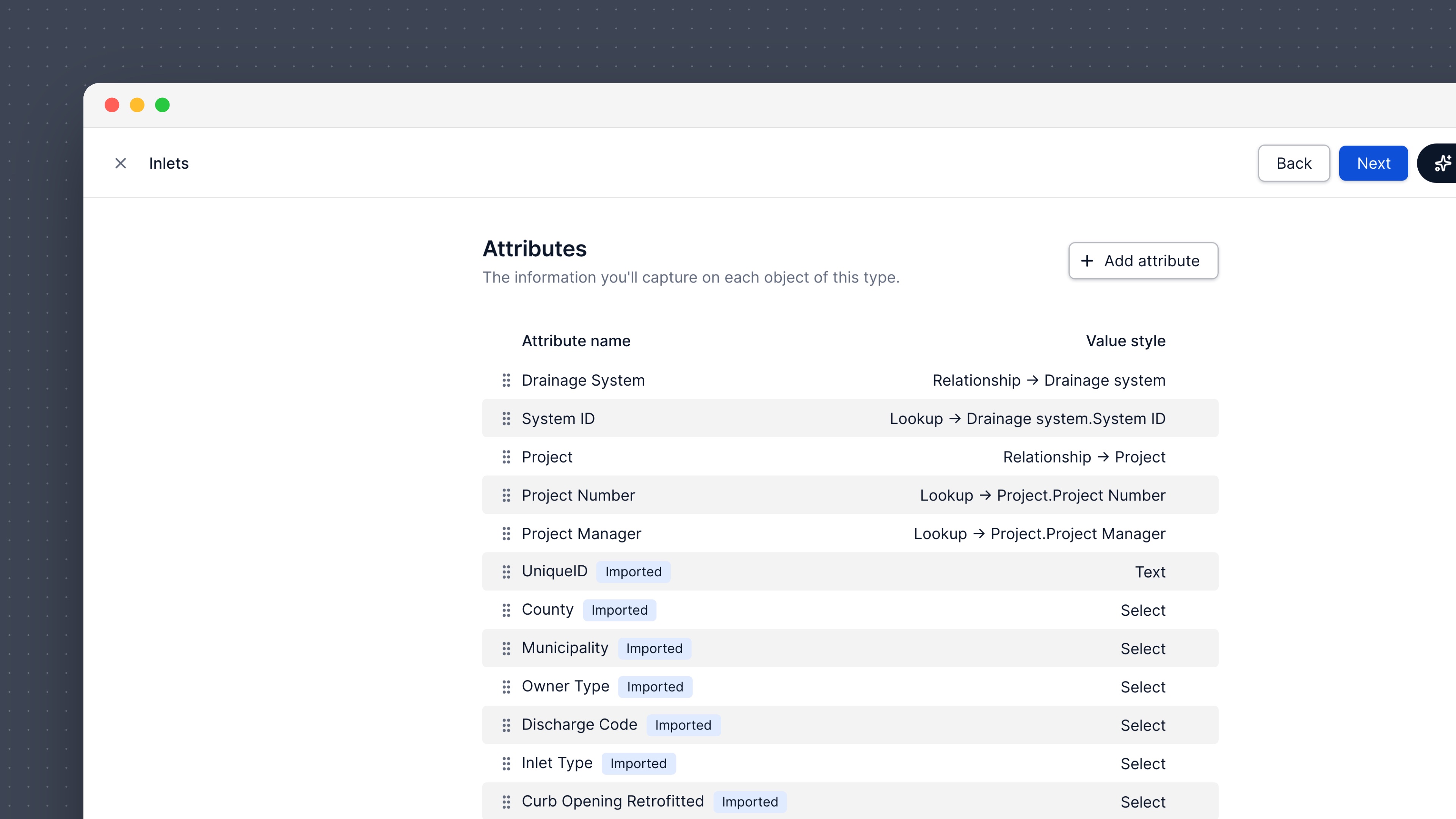 To add a lookup, select Add attribute, choose Lookup as the value type, then pick the related object and the field to show.
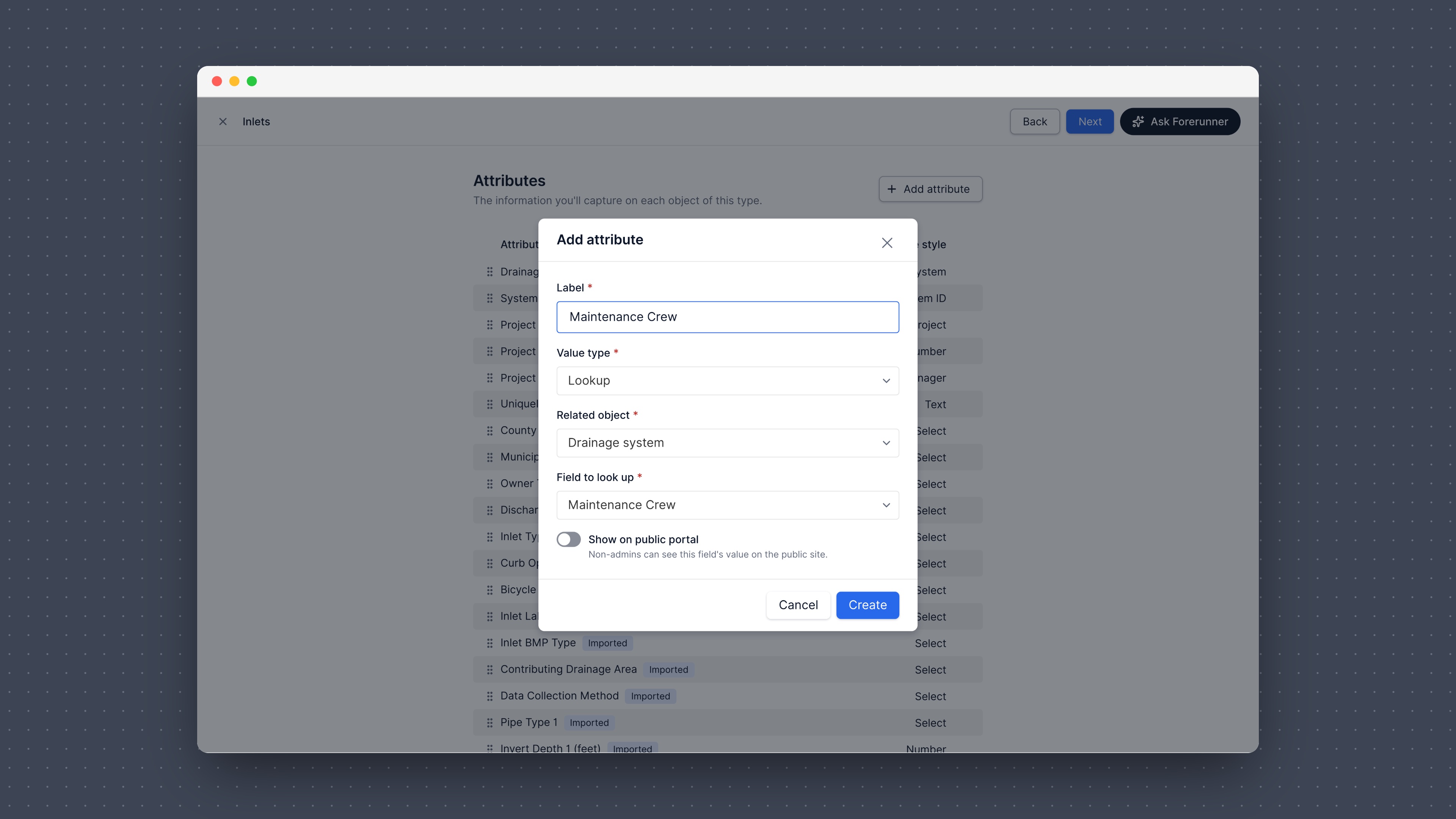 Lookups work from the side that has one linked object. An inlet can show its system’s ID, but a system can’t list a field from each of its inlets.
See related objects
Open an object on the map and go to the Related tab. It lists each relationship and the objects linked through it. Select any of them to open it. The map focuses on the object and everything linked to it, so you can see how they fit together. Hover over an object in the list to find it on the map.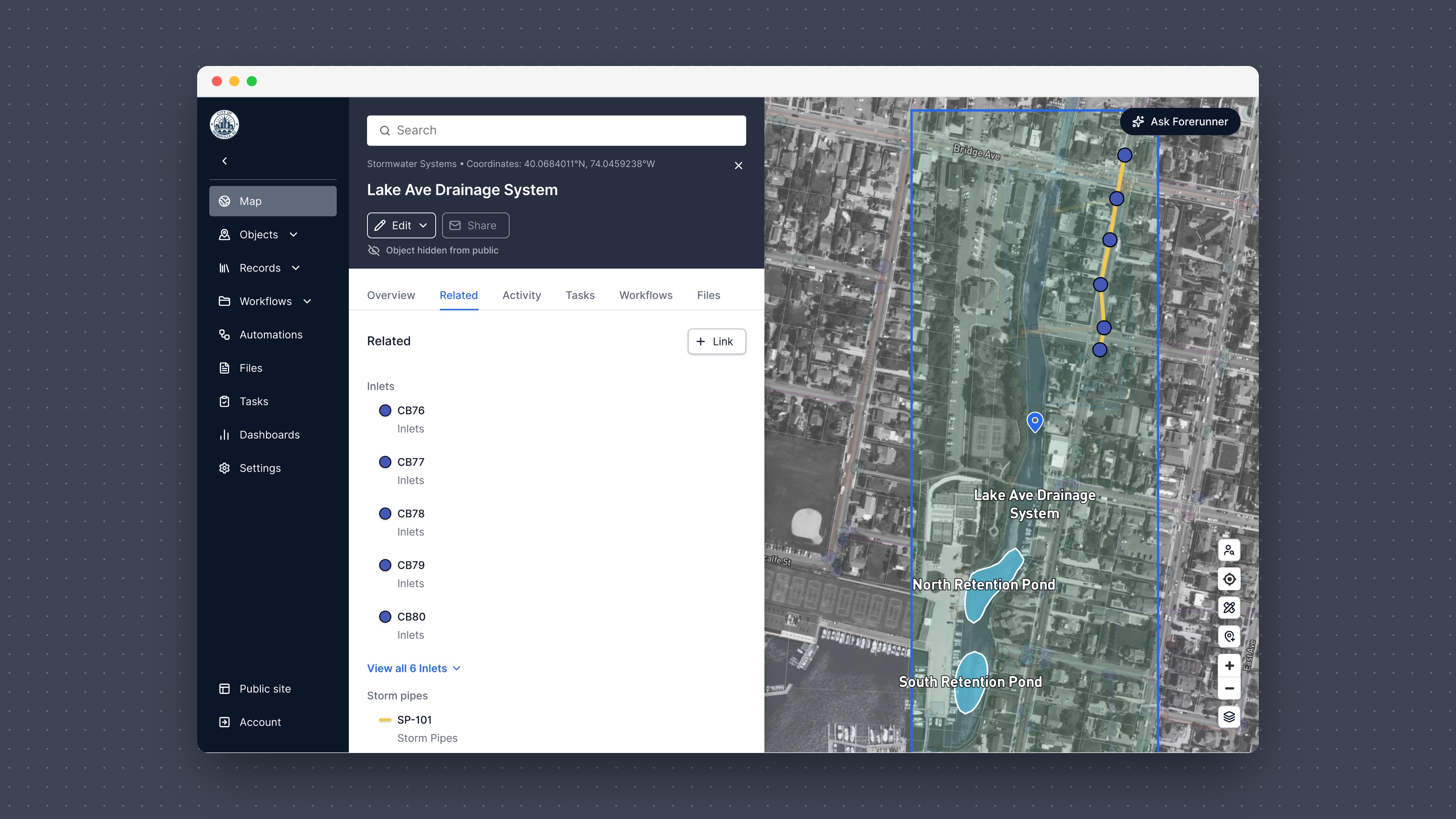
Link objects
1
Select Link
On the Related tab, select Link.
2
Pick the object
Choose the object type, then search for the object by name or select it on the map.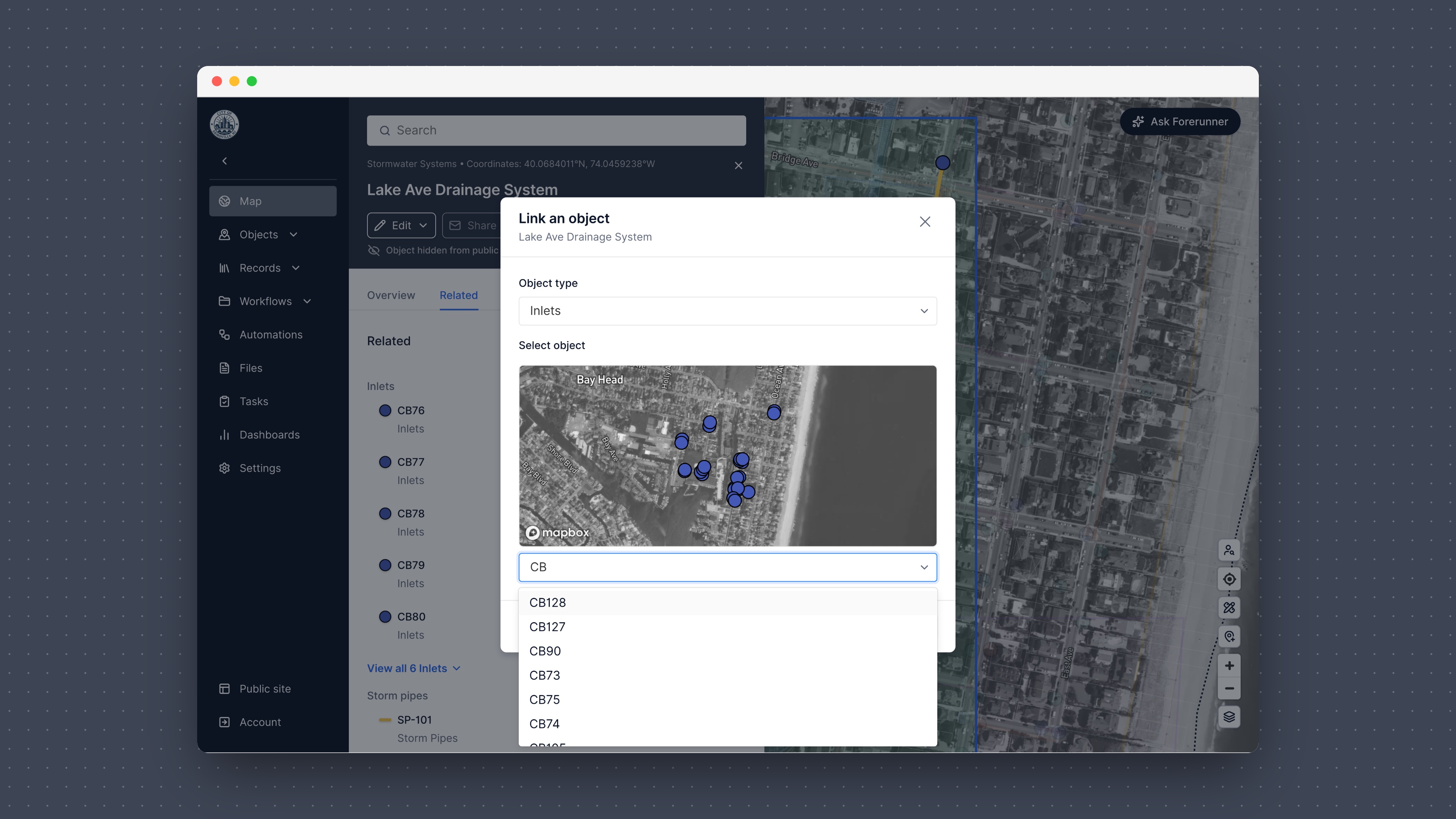
3
Select Link
The object now shows on both objects’ Related tabs.
Suggested links
Forerunner can suggest links based on where objects sit on the map, like the properties inside a community. Suggestions show with a Suggested tag on the Related tab. Open the … menu to Accept suggested link or Dismiss suggestion. Nothing is linked until someone accepts it, and a dismissed suggestion doesn’t come back.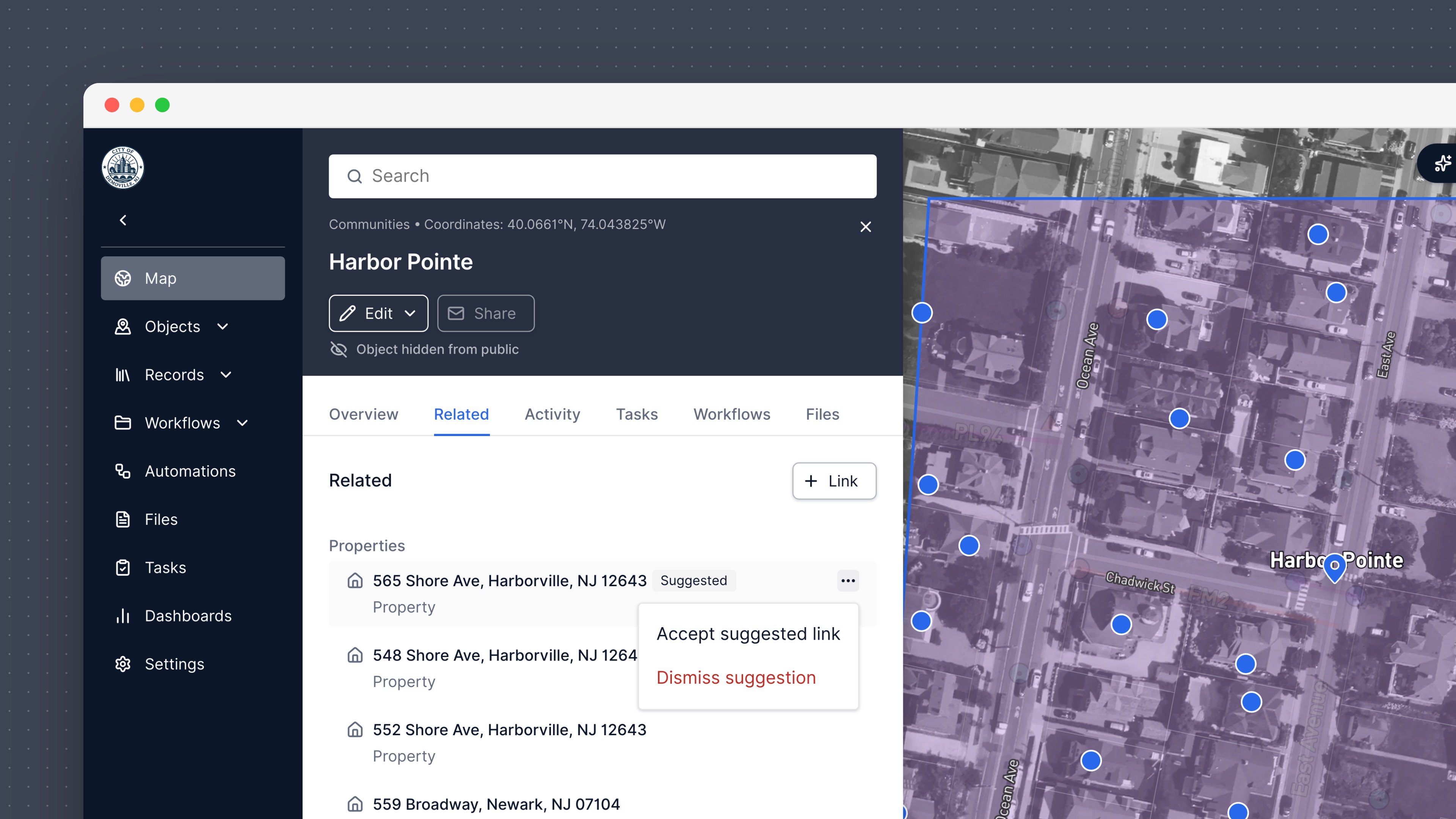
Change or unlink
Open the … menu next to a linked object:- Change swaps the linked object for another one. It shows where an object can only be linked to one, like an inlet’s system.
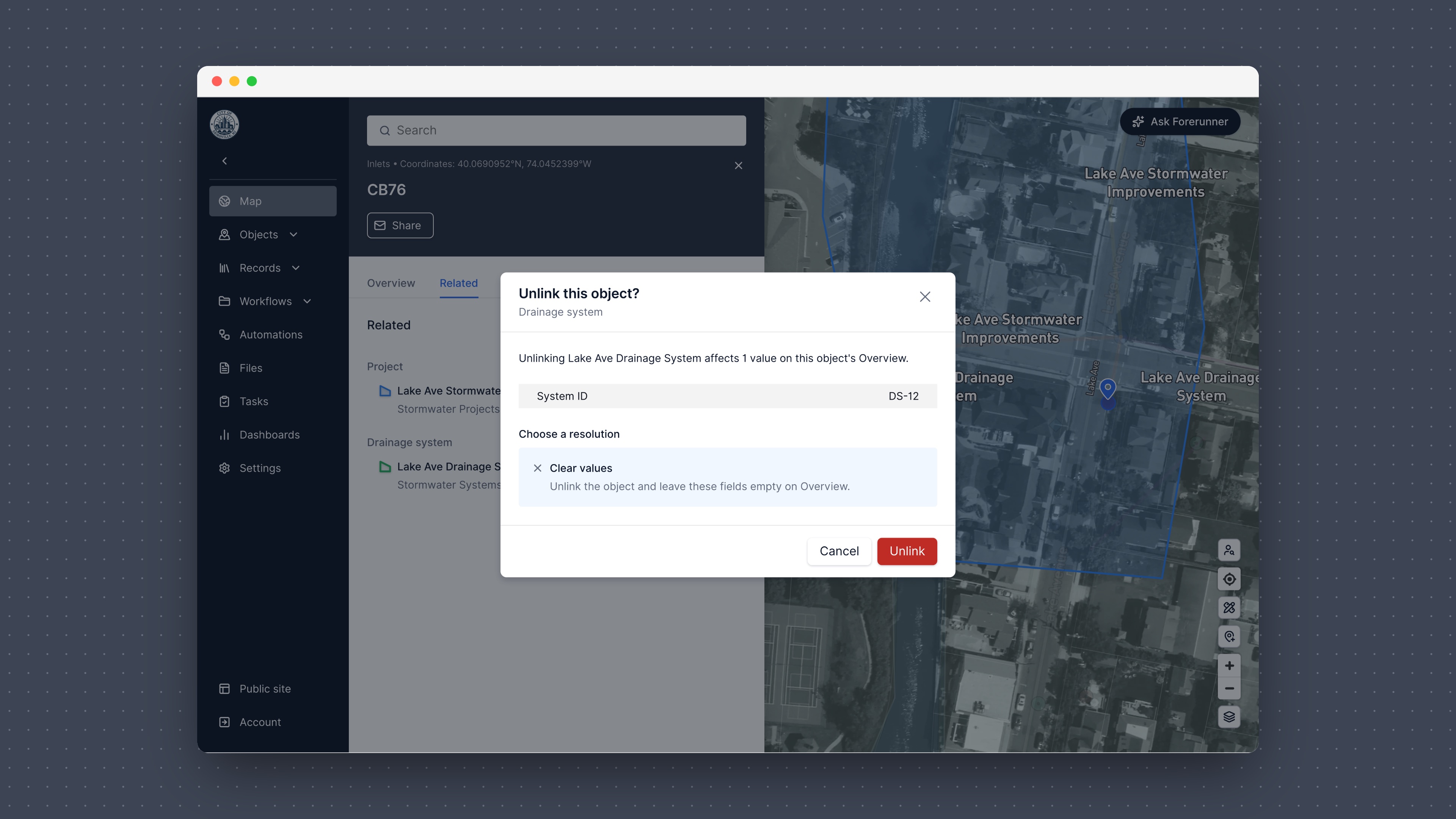
- Unlink removes the link. Neither object is deleted. If the link fills in lookups, Forerunner shows which values will be cleared before you confirm.
Lookups on the Overview
Relationship and lookup attributes show in Object properties on the Overview tab. Select the linked object’s name to open it.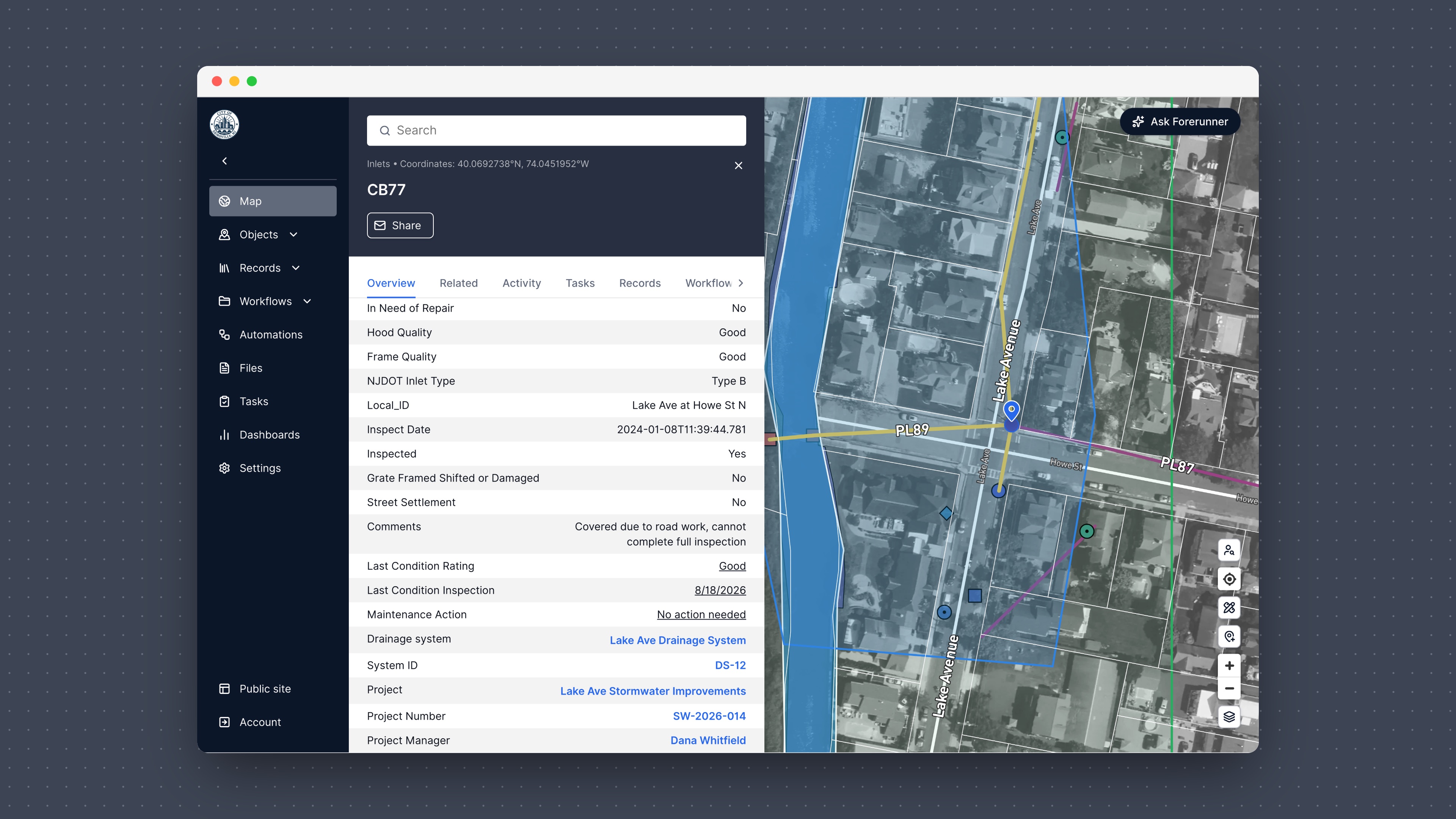
Tables
Relationship and lookup attributes can be added as columns in your object tables, including Properties, from Columns. Relationship columns link to each object, and you can sort by them.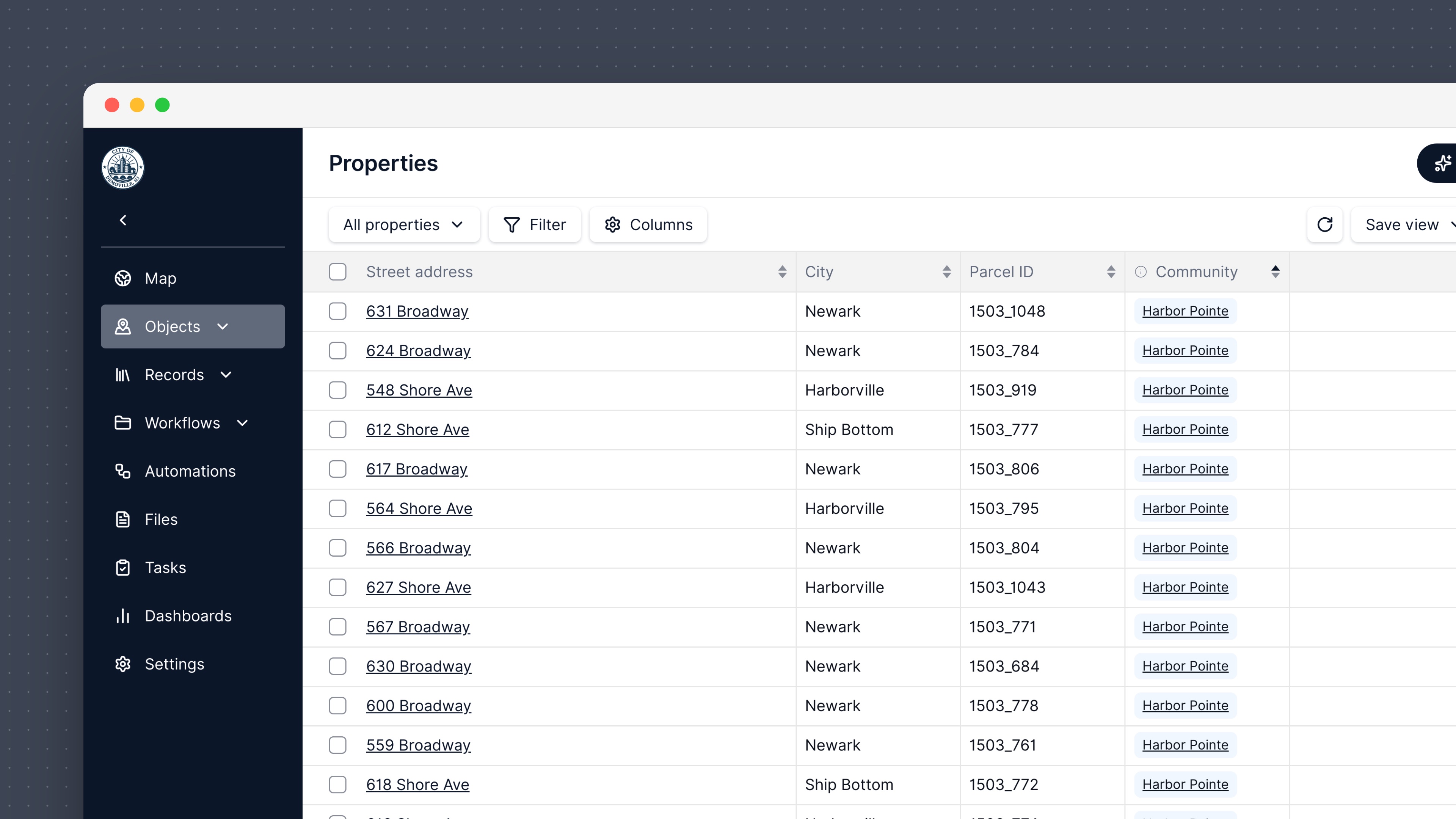
On the mobile app
The Related tab is in the mobile app from version 7.27. Field teams can see related objects, link, change, and unlink, and accept suggestions. Viewing and linking work offline. Suggestions only show when you’re online.Who can do what
- Managers set up relationships and lookups.
- Managers, members, and creators can link, change, and unlink objects and accept or dismiss suggestions.
- View only users can see related objects.
Limitations
- An object can be linked to one object or to many, but not many to many. An inlet can belong to one system, not several.
- Properties can’t be linked to other properties. To group units under a building, set the building up as an object.
- Relationships go one level at a time. A district shows its communities, but not the properties inside them.
- Lookups show a value from one linked object. They don’t add up totals.
- There’s no bulk linking from tables or imports yet.
- Relationships aren’t in search or filters, and they don’t show on the public website.
- There are no combined reports across related objects yet.