

How AI Fields work
- A manager turns on AI for a Short answer or Long answer field and writes the prompt it generates from
- Users fill out the rest of the record as usual
- The AI Field generates from the record’s content, including photos, PDFs, and videos uploaded to it, on demand or at submit
- If a field it references changes later, the content is flagged as outdated and can be regenerated
Set up an AI Field
1
Open the record type
Go to Settings → Account → Record types and open the record type you want to edit. See Customizing records for how record types work.
2
Select a Short answer or Long answer field
Select the field in the form. Its settings open in the sidebar.
3
Turn on AI
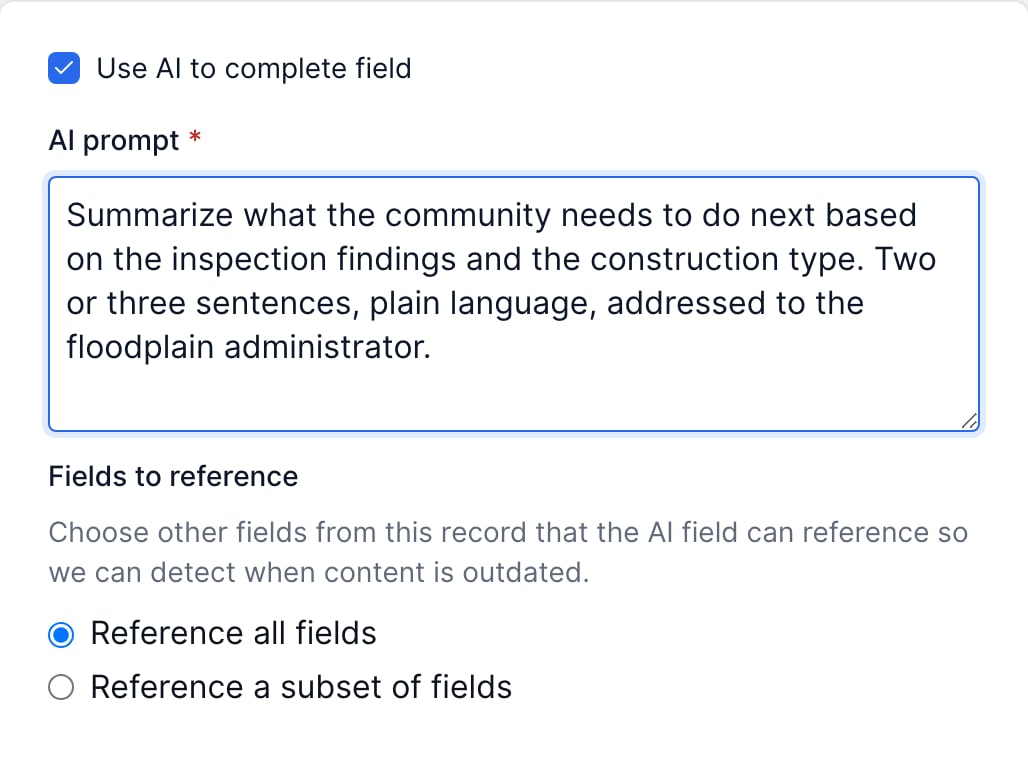
Check Use AI to complete field.
4
Write the prompt
In AI prompt, describe what the field should produce, including length and tone. For example: “Summarize the inspection findings in two or three sentences for the property owner. Plain language, no jargon.”
5
Choose the fields it references
Under Fields to reference, choose Reference all fields, or Reference a subset of fields and select them. This is what Forerunner watches to know when the generated content has gone out of date.
6
Save the record type
Select Save. The field is ready on new records of this type.
Use AI to complete field is unavailable on required fields. A required field is one the user has to answer themselves, so clear Required first if you want AI to fill it.
Ground a prompt in your own documents
An AI Field can generate from documents in AI knowledge instead of carrying the source material in its prompt. Select the documents under AI knowledge in the record type’s form settings and the field draws on them when it generates. See Knowledge Base. This keeps prompts short, and updating a document updates every field that relies on it.Generate content on a record
An empty AI Field shows a Generate with AI link. Select it and the content appears in the field, where anyone can edit it.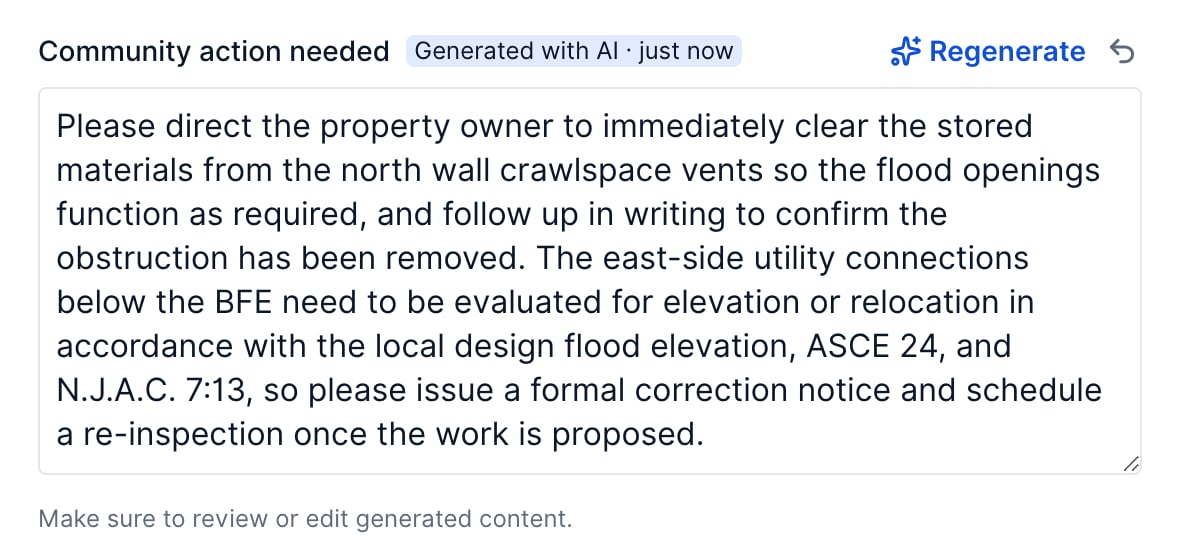
Use Regenerate to run the prompt again. The undo button steps back one change.
Keep content current
When someone changes a field an AI Field references, that field is tagged Outdated and a banner appears on the record: “2 AI fields are outdated. Regenerate with AI”. Selecting the link regenerates all of them at once. You can also choose Regenerate AI fields from the record’s action menu. Outdated is about freshness, not correctness. The content is still there and the record still saves. It just reflects an earlier version of the record.Regenerate across many records
To refresh AI Fields in bulk, after changing a prompt for example, select the rows you want in a records table and choose Regenerate AI fields. Records with no AI fields are skipped.AI Fields on mobile
Starting with version 7.26 of the mobile app, AI Fields work much like they do on the web. Select Generate with AI to fill a field, use Regenerate and undo from the same spot, and watch for the same Generated with AI, Edited, and Outdated tags. When fields are outdated, Regenerate AI fields in the record’s action menu refreshes all of them at once. Regenerating a field you edited asks you to confirm first. On earlier versions, the app shows AI Field content but doesn’t generate it, and an AI Field is read-only while you create a record. Generate and regenerate from the web app instead.Review what it writes
Read generated content before it reaches a property owner, a letter, or your public website. The prompt and the record’s own data shape the output, and what you get is a draft to review rather than a finished one. Every generation is recorded in your account’s AI activity log as an AI Form Field entry. See Exporting AI activity.Related topics
- Customizing records - Building and editing record types
- Knowledge Base - Documents the AI treats as authoritative
- Exporting AI activity - The audit record of every AI interaction