

You need app version 7.26 or later and a connection. If you don’t see Talk to fill out record, update the app from the App Store or Google Play.
Three ways to use the AI Assistant on mobile
- Chat to ask questions about the record
- Talk & show camera to talk back and forth while the AI Assistant sees your camera
- Talk to fill out record to describe what you see and have the AI Assistant fill out the record
How to use it
1
Open a record
Open a property or object, then open or create a record.
2
Tap Talk to fill out record
Tap the AI Assistant button (the sparkle icon), then Talk to fill out record. Allow microphone access the first time.
3
Describe what you see
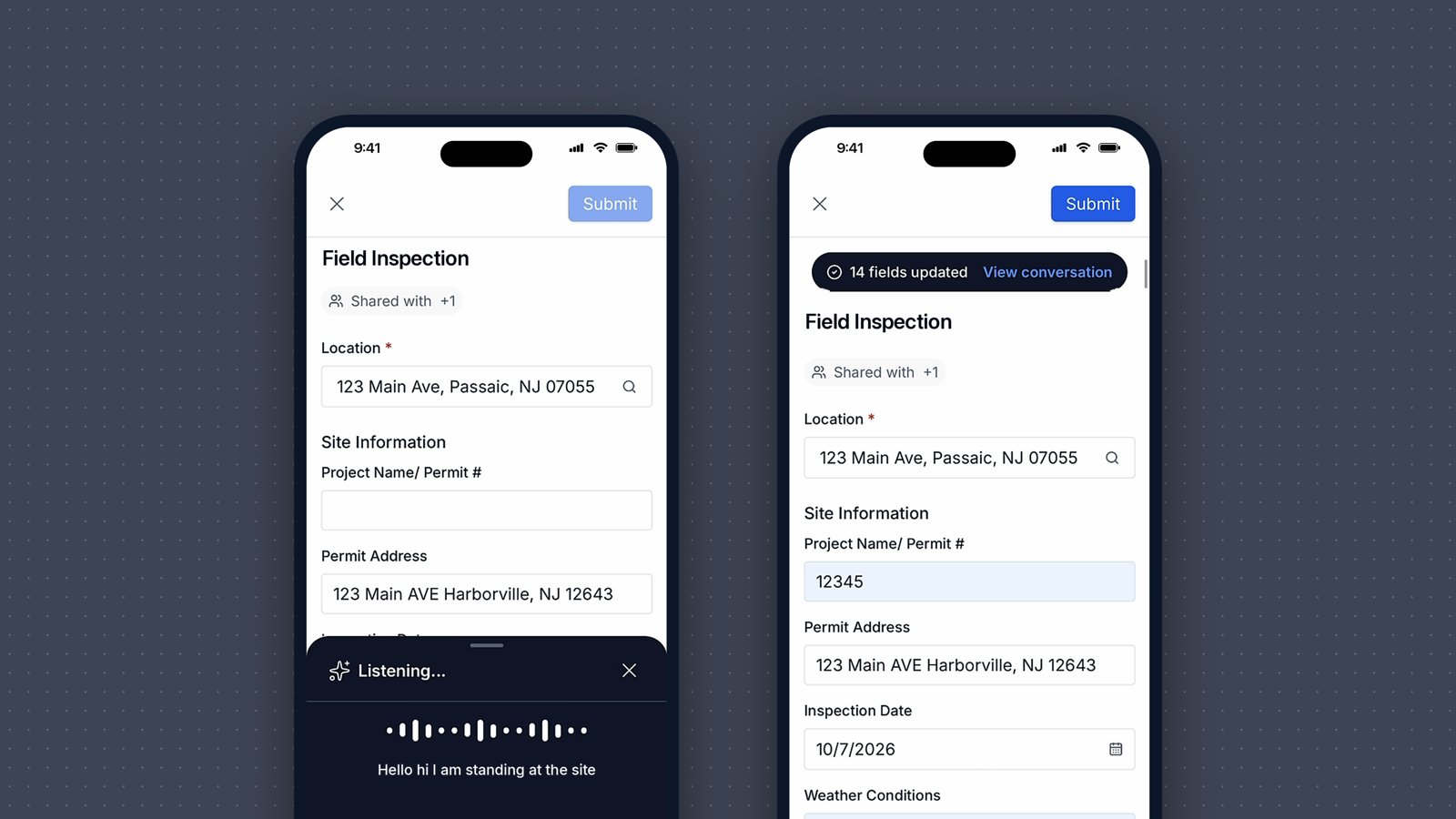
Talk naturally while the sheet says Listening…. You can still scroll the form.
4
Send and review
Tap the send arrow. The AI Assistant fills in the fields that match and highlights them. Review the highlighted fields before you save. Tap View conversation to see what it heard.
Tips
- Cover a lot at once. One recording can fill many fields.
- Other languages work. You can talk in Spanish, for example.
If something goes wrong
- “We couldn’t update your form” means nothing you said matched a field. Try again with details about this record.
- Lost your connection? Start a new recording once you’re back online.