

Open the location panel
- Web
- Mobile
Click Location in the bottom right of the map. The panel opens on the right.
See where people are now
The Live tab shows when each person was last seen. Managers see their whole team and can select someone to find them on the map. If someone is outside your account’s service area, their pin is hidden and they show as Outside the service area.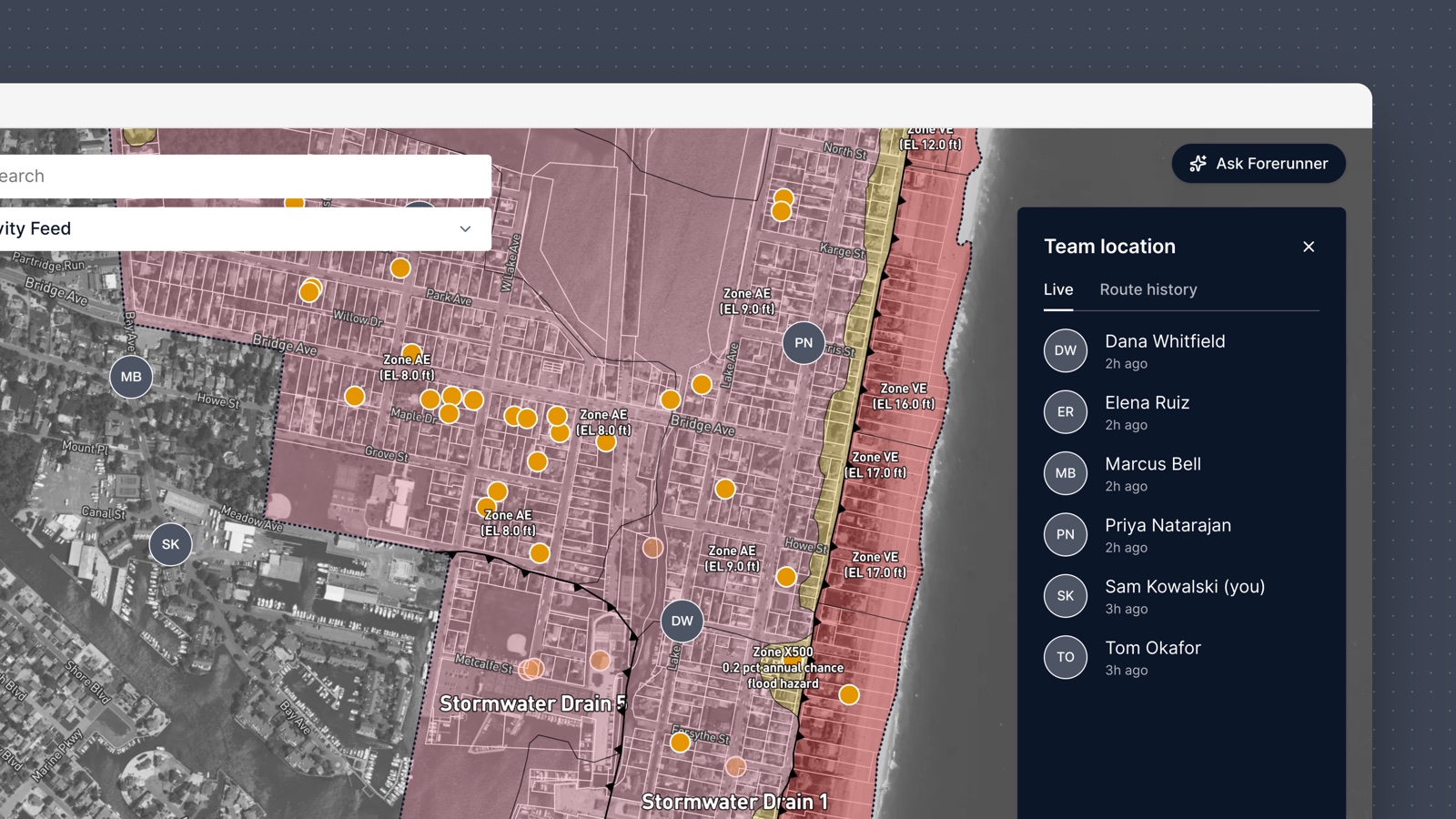
See a past route
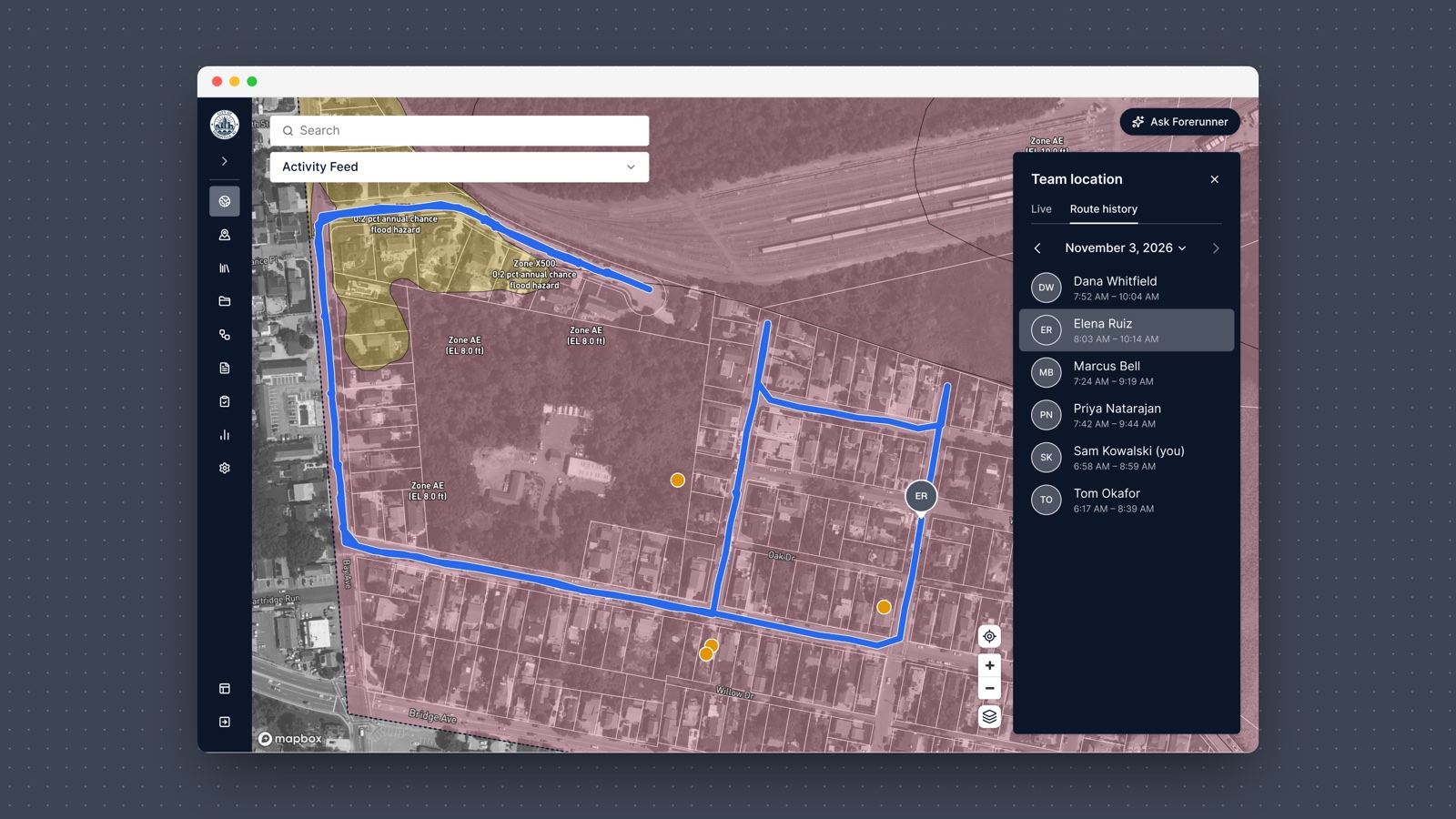
The Route history tab shows one day’s route on the map. It opens on today.- Use the arrows to go back or forward a day, or select the date to pick one.
- Managers see everyone on their team with a route that day, with start and end times. Select someone to see their route.
Who can see what
Find your app version at the bottom of Settings. See user roles for what each role can do.
How routes are recorded
Your route records while Forerunner is open on your phone, on any screen, with location sharing on.- Nothing records while the app is closed or in the background. Those times show as gaps in your route, with no line drawn across them.
- If you use more than one phone, each phone’s route shows on its own.
- Turning off location sharing stops recording. Your past routes stay.
Related documentation
- Location sharing - Turn sharing on or off on your phone
- Map layers - Control what appears on the map
- User roles - What each role can do