

The assistant is on the web app only. It’s turned on for every account unless your organization has asked us to keep AI features off. If you don’t see the Ask Forerunner button, contact your Customer Success Manager.
Opening the assistant
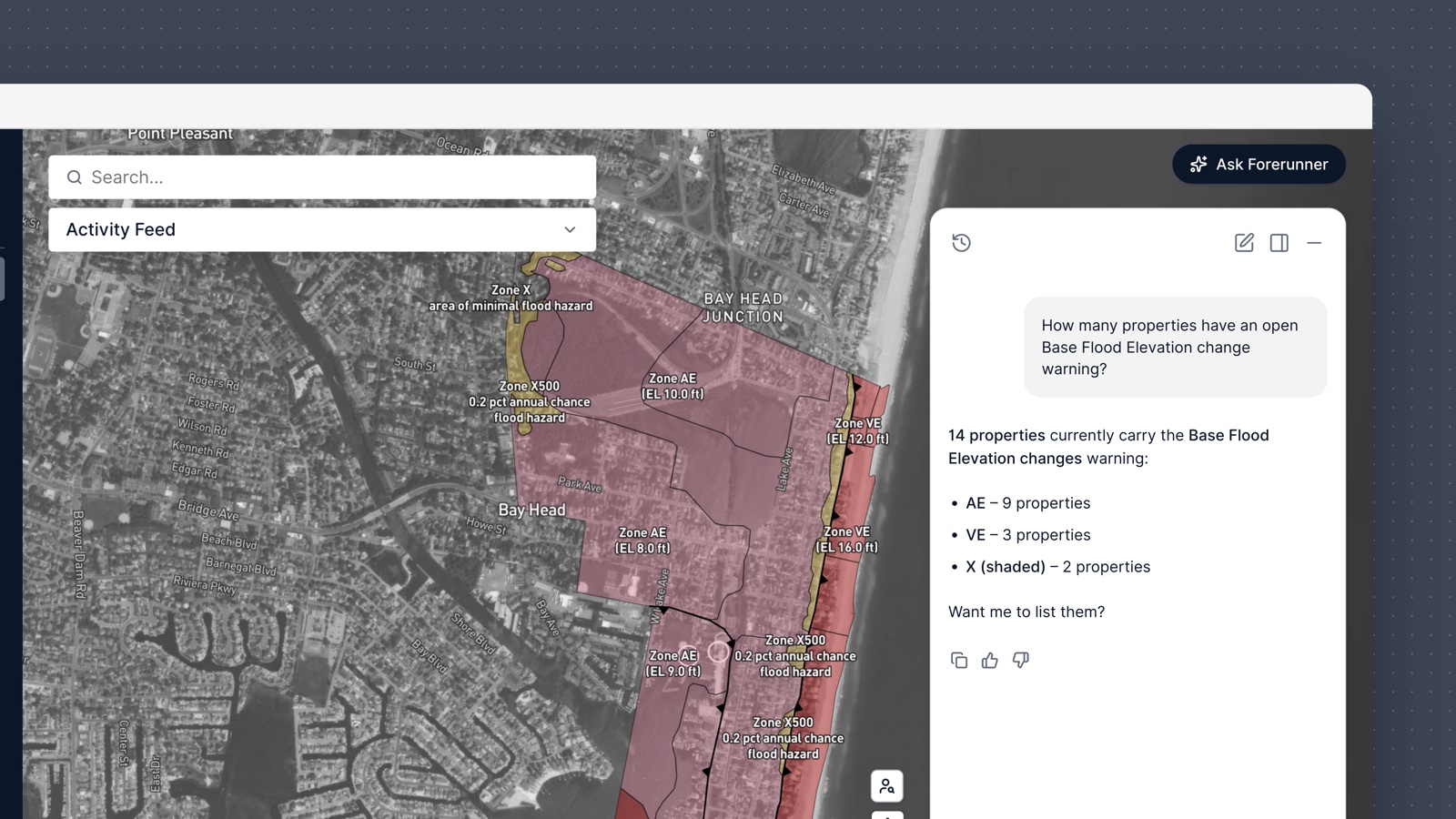
1
Click Ask Forerunner
You’ll find the Ask Forerunner button in the top right of the page. It’s available from anywhere in the web app.
2
Ask your question
Type your question the way you’d ask a colleague. You can also click one of the suggested prompts to get started.
3
Watch what it looks up
As it works, the assistant shows you which data it’s pulling. This is how you check that it looked in the right place.
4
Follow the links
Records, objects, and properties in the answer are links. Click through to the record itself to verify anything before you act on it.
Conversation history
Your conversations with the assistant are saved, so you can pick one back up instead of asking again.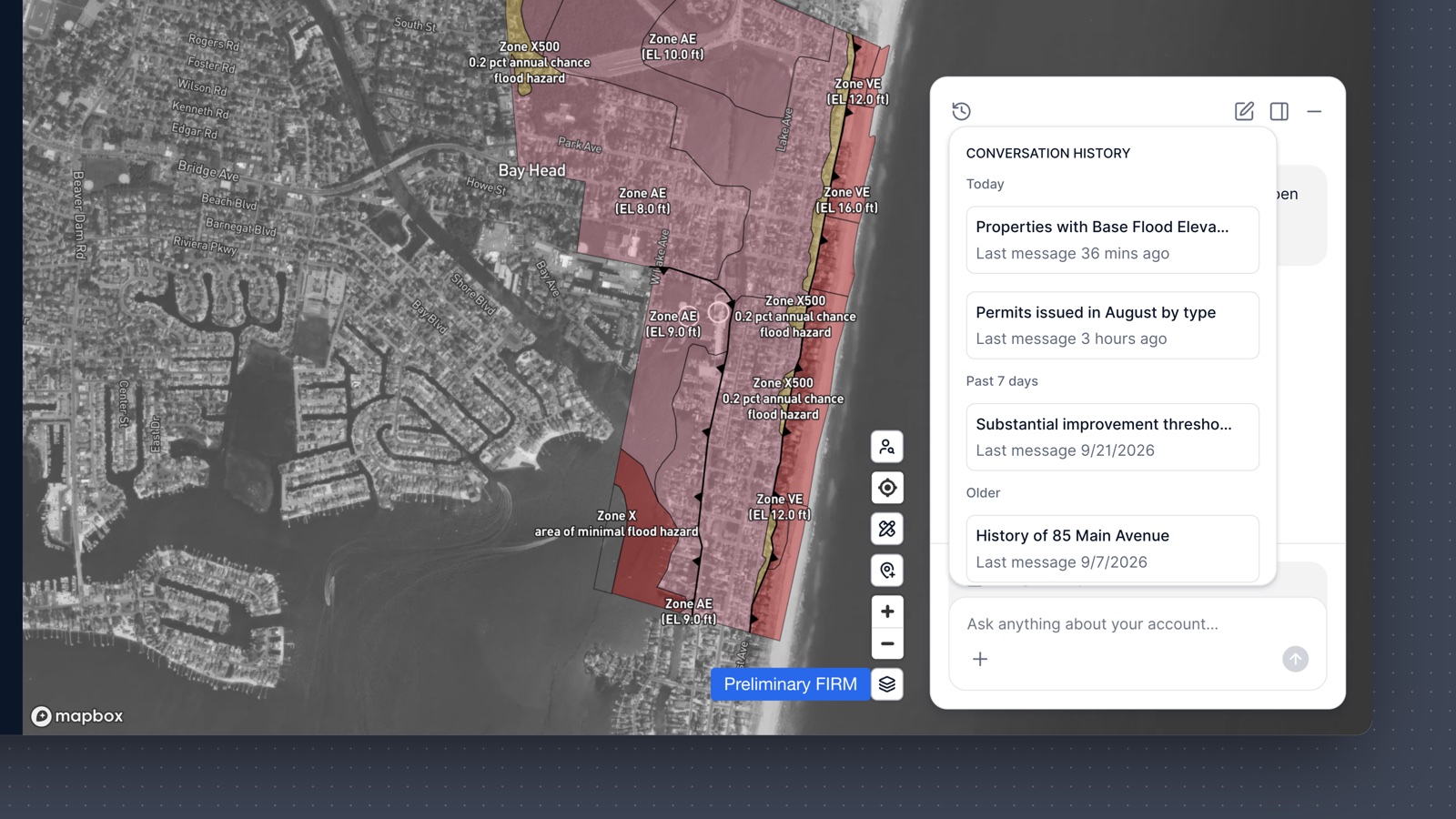
1
Open your conversations
Click the View conversations icon in the top left of the assistant panel. Conversations are listed newest first, grouped into Today, Past 7 days, and Older, each with a short title and when you last used it.
2
Pick one up
Click a conversation to reopen it. Its title shows at the top of the panel, the whole exchange comes back, and you can keep asking from where you left off.
3
Start something new
Click New chat when you change topics. The conversation you were in stays in your history.
- Conversations are yours. Nobody else in your account can open them from the assistant. Managers can still export a record of everyone’s AI activity; see Exporting AI activity.
- Your latest conversation is one click away. The opening screen offers to pick up where you left off in your most recent one.
- Titles come from your first message. A conversation that opened with “How many permits did we issue in July?” is easy to spot later.
- The assistant works from the page you have open now. If a conversation was about a record, open that record again before you keep asking about it.
What you can ask
Ask for prose, not just numbers
The answer doesn’t have to be a table. The assistant can write the narrative for you: a summary of a property’s history, a paragraph for a council update, a plain-language explanation of what a set of records shows, or the body of an email you’re about to send. Say what you want it to read like.- “Summarize this property’s permit history in a short paragraph I can paste into a letter”
- “Write a plain-language explanation of why this property needs an elevation certificate”
- “Give me a few sentences on how our inspection backlog changed this quarter”
Ask how to do something in Forerunner
The assistant answers questions about using Forerunner itself. It searches the Help Center and the API reference as you ask, and answers with a link to the article it used rather than from memory. If a search returns nothing, it says so instead of guessing at a link.Answers from your own regulations and procedures
This is one of the most useful things the assistant does, and for most teams it’s the reason to reach for it first. Upload your documents to AI knowledge and the assistant searches them and answers from them: your ordinances and codes, permitting and compliance procedures, technical standards, regulatory guidance, policy manuals, and staff runbooks. The more you add, the more it can answer, and you don’t have to know which document holds the rule or where it sits. You ask the question. Your documents are the authority. Where your own rules differ from the general ones, the assistant follows yours, and it quotes the passage it relied on rather than paraphrasing loosely.What to ask
You can ask by exact section or code number, or in your own words when you don’t know where it’s written down. The assistant handles both, so you don’t have to know the structure of your own documents to get an answer out of them.
Your rules and your data in one answer
The most valuable questions combine the two. Because the assistant reads your records and your documents in the same conversation, it can look up what’s actually true about a property and then tell you what your own rules require:- “This property has 45% damage. What do our regulations require at that level?”
- “Which open permits are missing something our permitting procedure requires?”
- “Does this elevation certificate meet our current standard?”
- “Draft the paragraph I’d send this owner, citing the rule that applies”
It knows what you’re looking at
The assistant picks up the page you have open, so you can talk about “this” and “these” instead of describing things again.Filling out a record
With a record open, describe what you observed or attach a photo, and the assistant fills in the matching fields. The changed fields are highlighted on the form, and the card in the chat lets you undo the whole update. Nothing is saved until you save the record.What it can’t do yet
Today the assistant cannot:- Create or delete records, or submit anything. On a record you have open it can fill in and change field values, and you review and save them. Everywhere else it only reads. It can’t create a new record, delete one, or approve or submit on your behalf.
- Answer questions about map layers. Anything that depends on what’s inside a boundary, such as “which properties are in the evacuation zone” or “how many records fall in our repetitive loss area,” isn’t supported yet. Ask by a property attribute instead, like flood zone or FIRM panel.
- Work on mobile. The mobile app has its own AI Assistant for filling out records in the field.
- Email anyone but you. It can’t send data to a resident, a colleague, or any outside address.