> ## Documentation Index
> Fetch the complete documentation index at: https://withforerunner.com/docs/llms.txt
> Use this file to discover all available pages before exploring further.
# Talk to fill out record
> Fill out a record on mobile by describing what you see
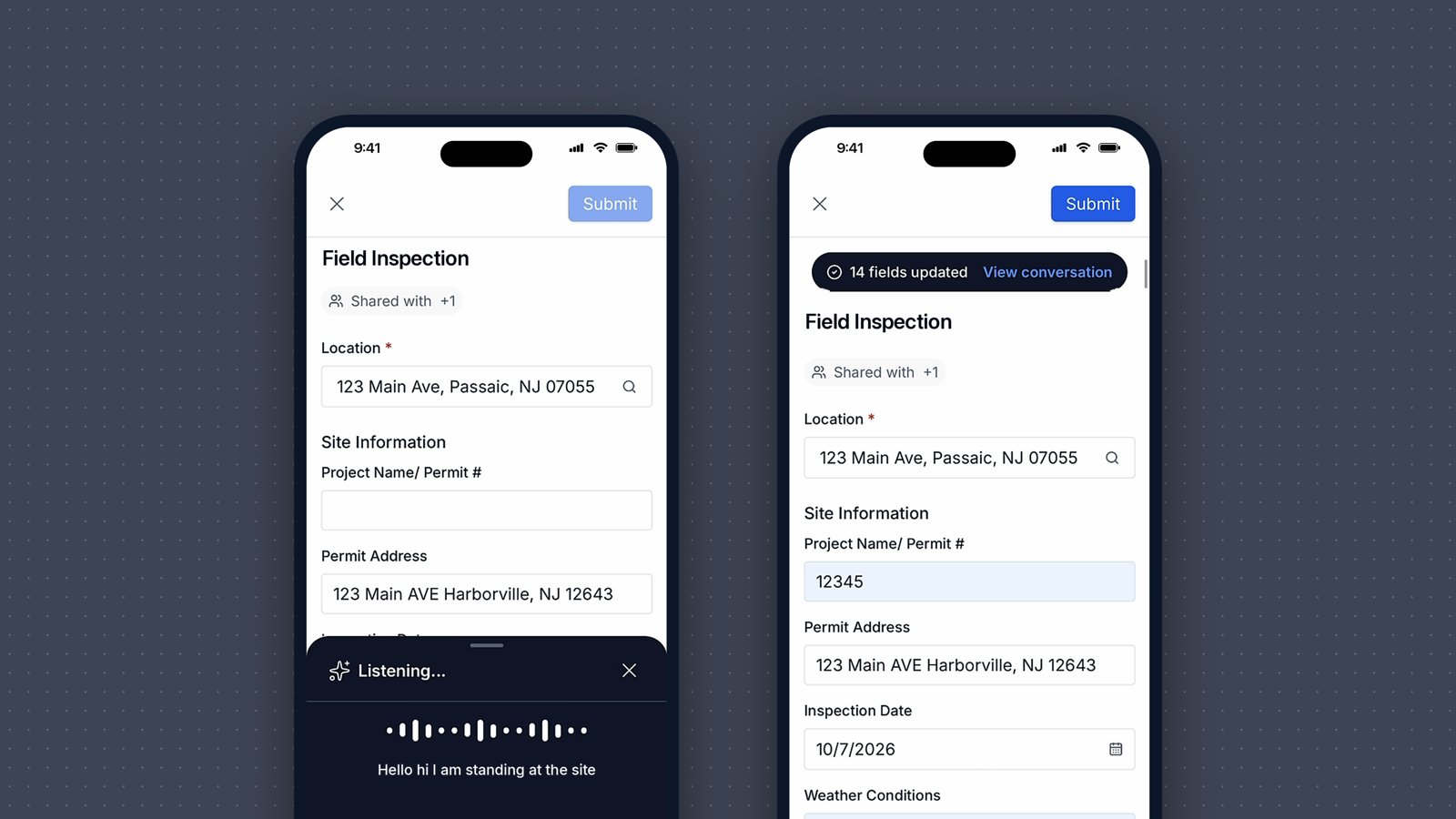
In the AI Assistant on mobile, tap **Talk to fill out record** and describe what you see. The AI Assistant fills out the record.
You need app version **7.26** or later and a connection. If you don't see **Talk to fill out record**, update the app from the App Store or Google Play.
## Three ways to use the AI Assistant on mobile
* **Chat** to ask questions about the record
* **[Talk & show camera](/docs/mobile/talk-and-show-camera)** to talk back and forth while the AI Assistant sees your camera
* **Talk to fill out record** to describe what you see and have the AI Assistant fill out the record
## How to use it
Open a property or object, then open or create a record.
Tap the AI Assistant button (the sparkle icon), then **Talk to fill out record**. Allow microphone access the first time.
Talk naturally while the sheet says **Listening...**. You can still scroll the form.
Tap the send arrow. The AI Assistant fills in the fields that match and highlights them. Review the highlighted fields before you save. Tap **View conversation** to see what it heard.
 ## Tips
* **Cover a lot at once.** One recording can fill many fields.
* **Other languages work.** You can talk in Spanish, for example.
## If something goes wrong
* **"We couldn't update your form"** means nothing you said matched a field. Try again with details about this record.
* **Lost your connection?** Start a new recording once you're back online.
This documentation is built and hosted on [Mintlify](https://mintlify.com), a developer documentation platform.
## Tips
* **Cover a lot at once.** One recording can fill many fields.
* **Other languages work.** You can talk in Spanish, for example.
## If something goes wrong
* **"We couldn't update your form"** means nothing you said matched a field. Try again with details about this record.
* **Lost your connection?** Start a new recording once you're back online.
This documentation is built and hosted on [Mintlify](https://mintlify.com), a developer documentation platform.