> ## Documentation Index
> Fetch the complete documentation index at: https://withforerunner.com/docs/llms.txt
> Use this file to discover all available pages before exploring further.
# Managing warnings
> Flag properties and objects so your team sees what matters before they act
A warning is a flag that sits on a property or object and tells your team something before they act on it: the structure is in the Special Flood Hazard Area (SFHA), its improvement costs are over your Substantial Improvement threshold, it is a Repetitive Loss property, or anything else your community wants called out.
Forerunner ships a set of warnings that keep themselves up to date from your data, and you can add your own.
## Where warnings appear
**Property and object profiles** - Applied warnings are listed in the **Warnings** section, most severe first. Selecting one opens its full text. The mobile app shows the same section on a property or object.
**Maps** - Warning layers highlight the properties that carry a warning. See [Map layers](/docs/maps/map-layers).
**Tables** - Filter a properties table by warning to build a working list, for example every property over the SI/SD threshold. See [Creating views](/docs/tables/creating-views).
**Public website** - Only warnings set to **Shown to public** appear on a property's public page. Everything else stays internal.
## Built-in warnings
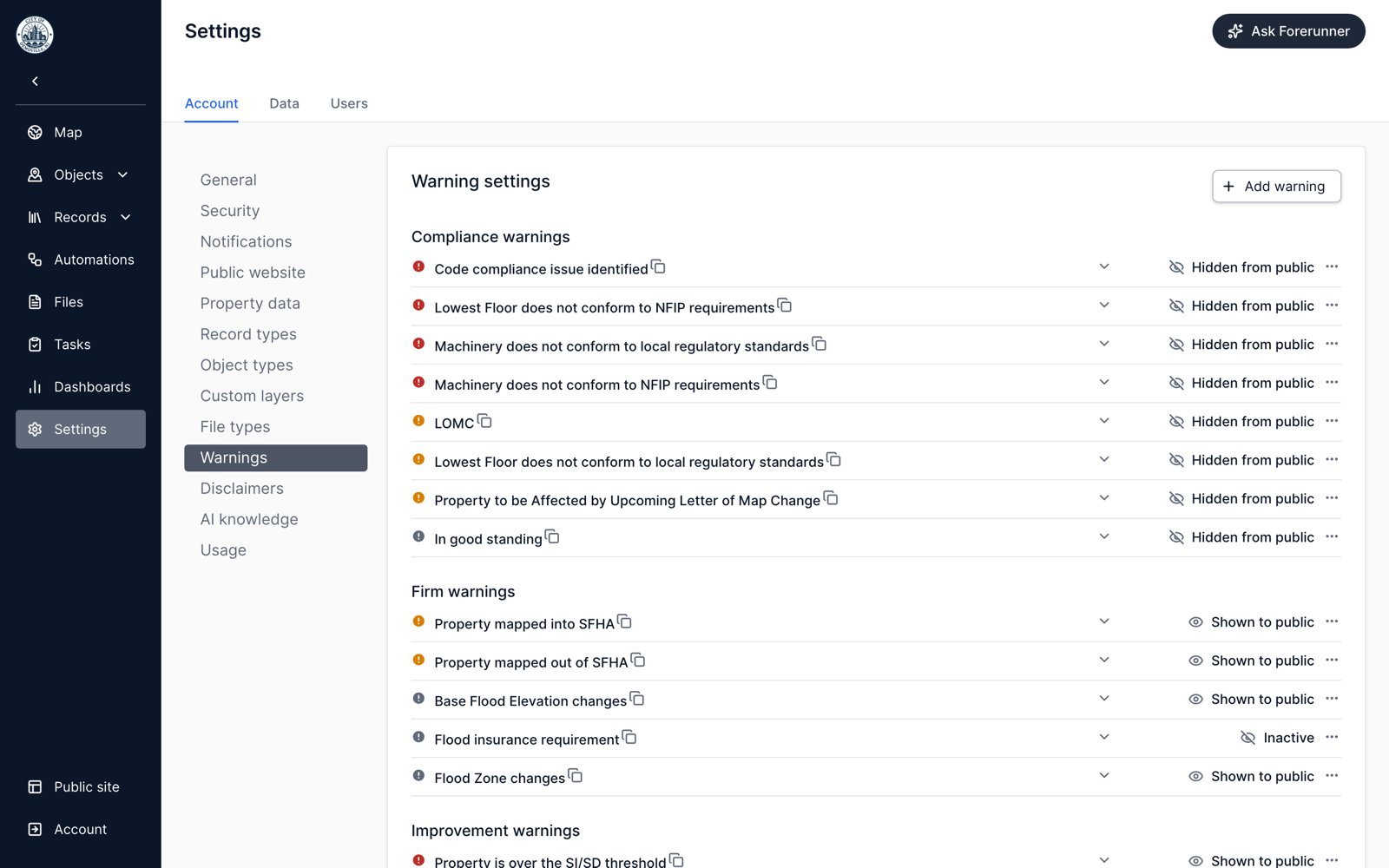
Built-in warnings apply and clear themselves as a property's data changes. Nobody has to keep them current.
| Group | What it flags |
| - | - |
| **FIRM** | Properties in the SFHA, properties mapped into or out of the SFHA on the Preliminary FIRM, and flood zone or Base Flood Elevation changes between the Effective and Preliminary FIRMs |
| **Compliance** | A Lowest Floor Elevation or lowest machinery elevation below the NFIP requirement or below your local regulatory standard |
| **Improvement** | Improvement costs nearing or exceeding your community's Substantial Improvement threshold |
| **Preliminary Damage Assessment** | Damage recorded on a PDA: affected, minor, major, or destroyed |
| **Repetitive Loss** | Repetitive Loss and Severe Repetitive Loss designations from the data on file with the NFIP |
For a built-in warning you can change its severity and visibility and make it inactive. Its group, object type, title, and text are fixed, and it can't be deleted.
 Repetitive Loss warnings are sensitive. They can't be shown to the public, and internally they're visible only to users with the **Can view** PII permission. See [Managing repetitive loss](/docs/administration/managing-repetitive-loss).
## Create a custom warning
Go to **Settings** > **Account** > **Warnings**. The page lists every warning in your account with its current visibility. Anyone can view it, but only Managers and Creators can add, edit, or delete warnings.
Choose **Add warning** in the top right.
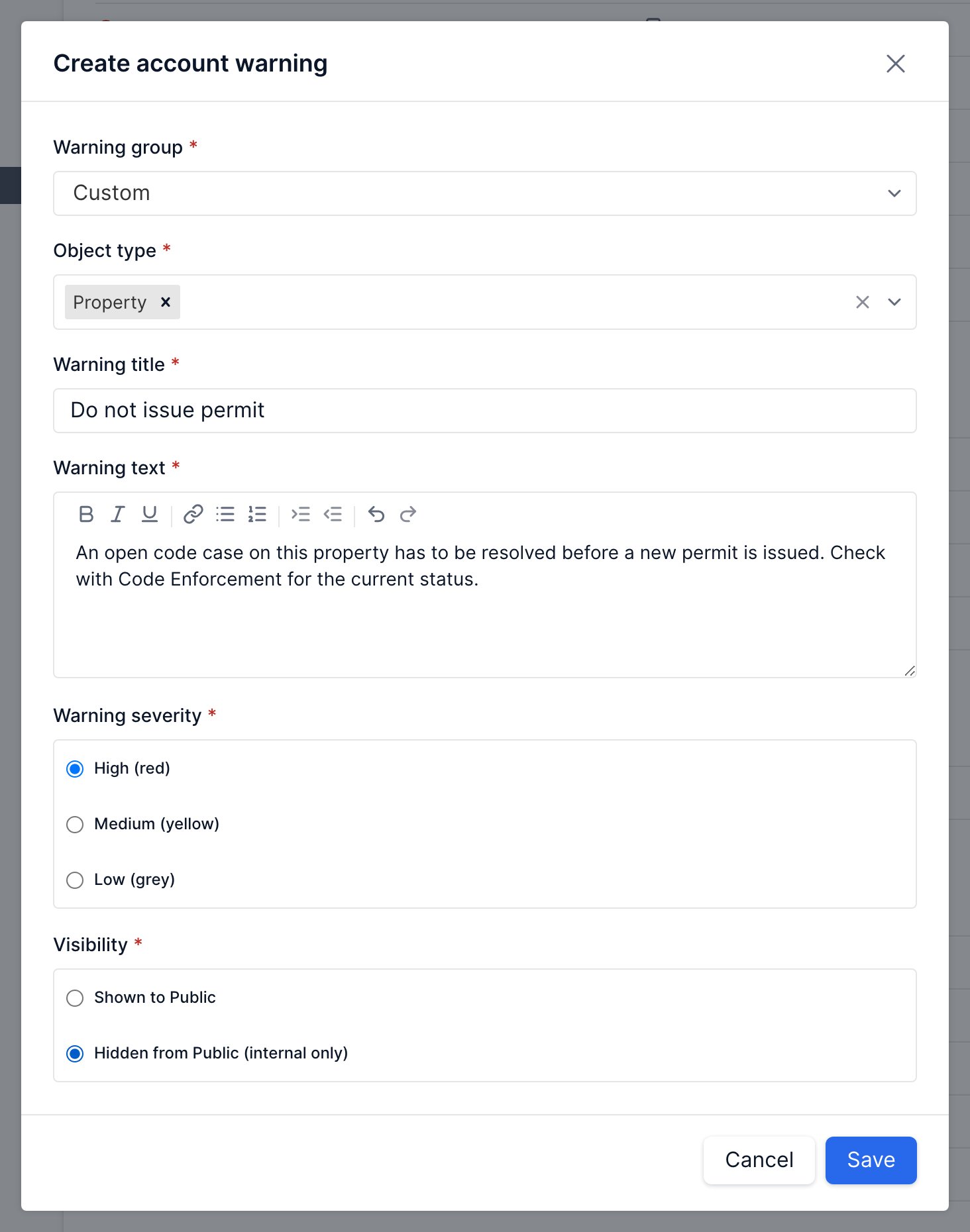
Pick a **Warning group**. Most custom warnings go in **Custom**, but you can file one under any group except Repetitive Loss so it sits next to related built-in warnings. Under **Object type**, choose the properties or objects the warning can apply to.
The **Warning title** is what shows in the Warnings section and on the map. The **Warning text** is the detail someone reads when they open it, so say what the person should do about it, not just what is true.
**High (red)**, **Medium (yellow)**, or **Low (grey)**. Severity sets the color and sorts the Warnings section, so keep red for things that should stop work.
**Shown to Public** or **Hidden from Public (internal only)**. This choice appears once your public website is enabled. Improvement warnings stay hidden while **Show Substantial Improvement / Substantial Damage** is off in your public website settings.
Repetitive Loss warnings are sensitive. They can't be shown to the public, and internally they're visible only to users with the **Can view** PII permission. See [Managing repetitive loss](/docs/administration/managing-repetitive-loss).
## Create a custom warning
Go to **Settings** > **Account** > **Warnings**. The page lists every warning in your account with its current visibility. Anyone can view it, but only Managers and Creators can add, edit, or delete warnings.
Choose **Add warning** in the top right.
Pick a **Warning group**. Most custom warnings go in **Custom**, but you can file one under any group except Repetitive Loss so it sits next to related built-in warnings. Under **Object type**, choose the properties or objects the warning can apply to.
The **Warning title** is what shows in the Warnings section and on the map. The **Warning text** is the detail someone reads when they open it, so say what the person should do about it, not just what is true.
**High (red)**, **Medium (yellow)**, or **Low (grey)**. Severity sets the color and sorts the Warnings section, so keep red for things that should stop work.
**Shown to Public** or **Hidden from Public (internal only)**. This choice appears once your public website is enabled. Improvement warnings stay hidden while **Show Substantial Improvement / Substantial Damage** is off in your public website settings.
 Custom warnings can't be created in the Repetitive Loss group.
If you hide a warning from the public while a public saved view uses it, Forerunner blocks the save and asks you to update those views first. Otherwise the change would break what the public site is showing.
## Apply a warning
Custom warnings don't apply themselves. There are two ways to put one on a property or object:
**By hand** - Open the property or object, select **Edit warnings** in the Warnings section, and switch the warning on. The same modal switches a warning back off. Managers and Members see this button. In the mobile app, use **Edit** in the Warnings section.
**With an automation** - Add an **Update a warning** action to an automation and choose **Apply warning** or **Clear warning**. This is how you keep a warning in step with your records, for example applying a "Do not issue permit" warning when a code case opens and clearing it when the case closes. See [Building automations](/docs/automations/building-automations).
## Retire a warning
**Make a warning inactive** when you want it out of the way but want to keep the history. Choose **Make warning inactive** from the warning's menu. It disappears from property profiles and from the Edit warnings modal, and you can make it active again at any time.
**Delete a warning** to remove it permanently. Only custom warnings can be deleted. Deleting takes it off every property and object it was applied to, along with those entries in the activity history.
## Related topics
* [Map layers](/docs/maps/map-layers) - Warning layers on the map
* [Building automations](/docs/automations/building-automations) - Applying and clearing warnings automatically
* [Managing repetitive loss](/docs/administration/managing-repetitive-loss) - Repetitive Loss data and permissions
* [User roles](/docs/administration/user-roles) - Who can create and edit warnings
This documentation is built and hosted on [Mintlify](https://mintlify.com), a developer documentation platform.
Custom warnings can't be created in the Repetitive Loss group.
If you hide a warning from the public while a public saved view uses it, Forerunner blocks the save and asks you to update those views first. Otherwise the change would break what the public site is showing.
## Apply a warning
Custom warnings don't apply themselves. There are two ways to put one on a property or object:
**By hand** - Open the property or object, select **Edit warnings** in the Warnings section, and switch the warning on. The same modal switches a warning back off. Managers and Members see this button. In the mobile app, use **Edit** in the Warnings section.
**With an automation** - Add an **Update a warning** action to an automation and choose **Apply warning** or **Clear warning**. This is how you keep a warning in step with your records, for example applying a "Do not issue permit" warning when a code case opens and clearing it when the case closes. See [Building automations](/docs/automations/building-automations).
## Retire a warning
**Make a warning inactive** when you want it out of the way but want to keep the history. Choose **Make warning inactive** from the warning's menu. It disappears from property profiles and from the Edit warnings modal, and you can make it active again at any time.
**Delete a warning** to remove it permanently. Only custom warnings can be deleted. Deleting takes it off every property and object it was applied to, along with those entries in the activity history.
## Related topics
* [Map layers](/docs/maps/map-layers) - Warning layers on the map
* [Building automations](/docs/automations/building-automations) - Applying and clearing warnings automatically
* [Managing repetitive loss](/docs/administration/managing-repetitive-loss) - Repetitive Loss data and permissions
* [User roles](/docs/administration/user-roles) - Who can create and edit warnings
This documentation is built and hosted on [Mintlify](https://mintlify.com), a developer documentation platform.